Exceptional server management requires immediate, reliable technical assistance. BoostonCP provides a modern, two-tiered support infrastructure:
- Human Technical Support Desk: Staffed by senior Linux systems engineers 24 hours a day, 7 days a week, handling complex infrastructure inquiries, billing reconciliations, and custom migration planning.
- Sentinel AI Diagnostic Assistant: An autonomous, on-demand AI server assistant capable of inspecting system log snippets, diagnosing Nginx syntax faults, suggesting MySQL performance tunings, and resolving control panel errors in real time.
This user manual details how to open and manage support tickets, interact with Sentinel AI, and expedite technical resolutions.
1. Opening Support Tickets: The Helpdesk Interface
To contact our engineering team, navigate to https://boostoncp.com/client/support.php or click Support in the client sidebar.
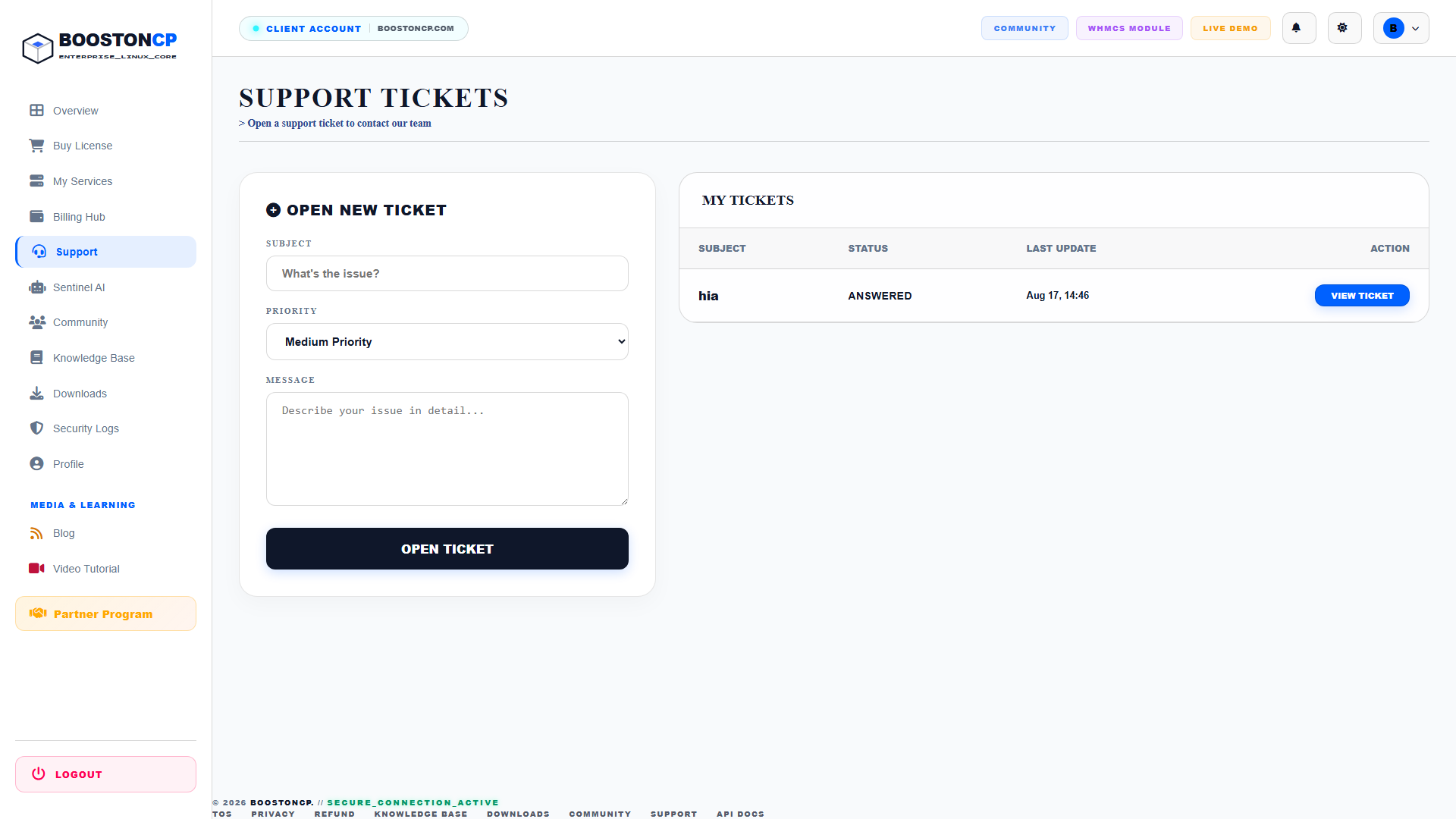
The support interface features a split-screen layout designed for rapid ticket creation and tracking:
Left Panel: Open New Ticket
- SUBJECT Field: An icon-prefixed text input prompting:
What's the issue?. Summarize the problem concisely (e.g.,PHP-FPM Socket Timeout on Webserver Switch). - PRIORITY Selector: A dropdown menu allowing you to designate operational urgency:
Low Priority: General inquiries, feature questions, and non-blocking optimizations.Medium Priority: Routine maintenance queries, configuration guidance, or standard issues.High Priority: Production website downtime, database deadlocks, or licensing synchronization failures.
- MESSAGE Box: A large textarea prompting:
Describe your issue in detail.... Provide specific error logs, domain names, operating system versions, and reproduction steps. - OPEN TICKET Button: The dark action button that validates your input and dispatches the ticket directly into the engineering queue.
Right Panel: My Tickets
- Lists all your current and historical inquiries:
- SUBJECT: Ticket title (e.g.,
Server Migration Inquiry). - STATUS:
OPEN: Ticket submitted and awaiting engineer review.ANSWERED: Support staff has replied; awaiting your feedback.CUSTOMER-REPLY: You have sent additional information.CLOSED: Inquiry resolved and archived.
- LAST UPDATE: Timestamp of the latest response (e.g.,
Aug 17, 14:46). - ACTION: The blue VIEW TICKET button, which opens the full conversation thread (
view_ticket.php).
- SUBJECT: Ticket title (e.g.,
2. Step-by-Step: Submitting an Effective Support Ticket
Follow these steps to submit a support request that our engineers can resolve quickly:
Step 1: Gather System Information
Before writing your ticket, collect relevant diagnostic details from your server:
- Server Public IP Address and Operating System (e.g., Ubuntu 22.04 LTS / Debian 12 / AlmaLinux 9).
- Affected domain name or service.
- Exact error message from
/var/log/nginx/error.logor/var/log/php-fpm/.
Step 2: Complete the Ticket Form
- On
support.php, enter a descriptive title in the SUBJECT field. - Select the appropriate PRIORITY level.
- In the MESSAGE box, describe the symptoms, what changes preceded the issue, and paste the exact error message within code blocks.
Step 3: Submit and Track
Click OPEN TICKET. Your ticket will instantly appear in the MY TICKETS table with status OPEN. You will receive an automated email confirmation containing your unique Ticket ID.
3. The Sentinel AI Assistant: Instant Diagnostics
For instantaneous troubleshooting without waiting for staff review, launch the Sentinel AI Assistant by clicking Sentinel AI in the sidebar or visiting https://boostoncp.com/client/sentinel.php.
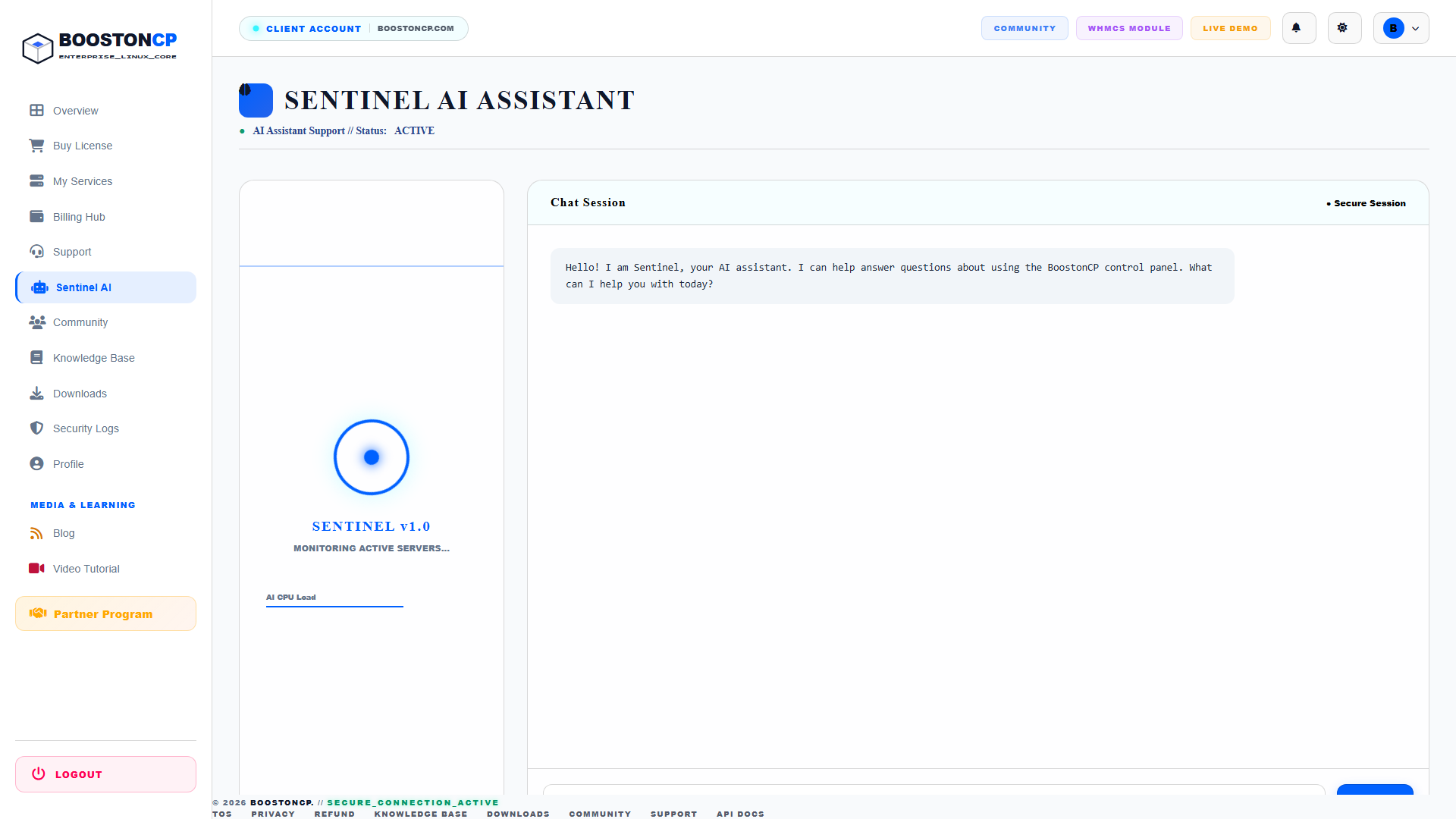
Sentinel AI Interface Components:
- Radar Telemetry Widget: Features the animated radar core labeled
SENTINEL v1.0 // MONITORING ACTIVE SERVERS...alongside an AI CPU Load indicator showing assistant availability. - Secure Chat Session: An interactive terminal window maintaining an encrypted conversational context with the AI core.
Common Tasks Sentinel AI Can Solve Instantly:
- Log Analysis: Paste raw error logs from Nginx, Apache, OpenLiteSpeed, or MySQL. Sentinel AI will identify syntax errors, missing socket files, or permission discrepancies.
- Configuration Debugging: Ask Sentinel AI how to configure custom PHP directives (
memory_limit,max_execution_time), setup Cloudflare Tunnels, or configure Postfix mail relays. - Command Recommendations: Request exact GoLang core binary commands (e.g.,
/usr/bin/booston-core) for headless automation or crontab scheduling.
How to Chat with Sentinel AI:
- In the chat box at the bottom of the session window, type your question or paste your terminal error snippet.
- Press Enter or click the send button.
- Sentinel AI processes your inquiry and returns formatted technical instructions, explanations, and exact commands in seconds.
4. Troubleshooting Support Communication
Issue 1: Not receiving email alerts when support replies
- Cause: Notification emails filtered into Spam/Promotions tabs.
- Resolution: Whitelist
[email protected]in your email provider. You can also view replies directly onview_ticket.phpinside the client portal.
Issue 2: Sentinel AI reports "System Busy" or rate limit
- Cause: Rapid consecutive queries exceeded the automated throttling threshold.
- Resolution: Wait 30 seconds before sending your next inquiry. For long code snippets, condense the log output to only the lines containing error traces.




