The BoostonCP Client Dashboard (https://boostoncp.com/client/dashboard.php) is the command and control center for your server fleet and licensing lifecycle. Engineered with a high-density, real-time interface, the dashboard provides instant visibility into active server nodes, billing statuses, support requests, and license provisioning states.
Whether you are managing a single cloud instance or orchestrating dozens of bare-metal dedicated servers, this guide walks you through every module, metric card, and quick-action tool available in the client overview.
1. Dashboard Overview & Visual Architecture
Upon authenticating into the client portal, you are greeted by the centralized overview screen.
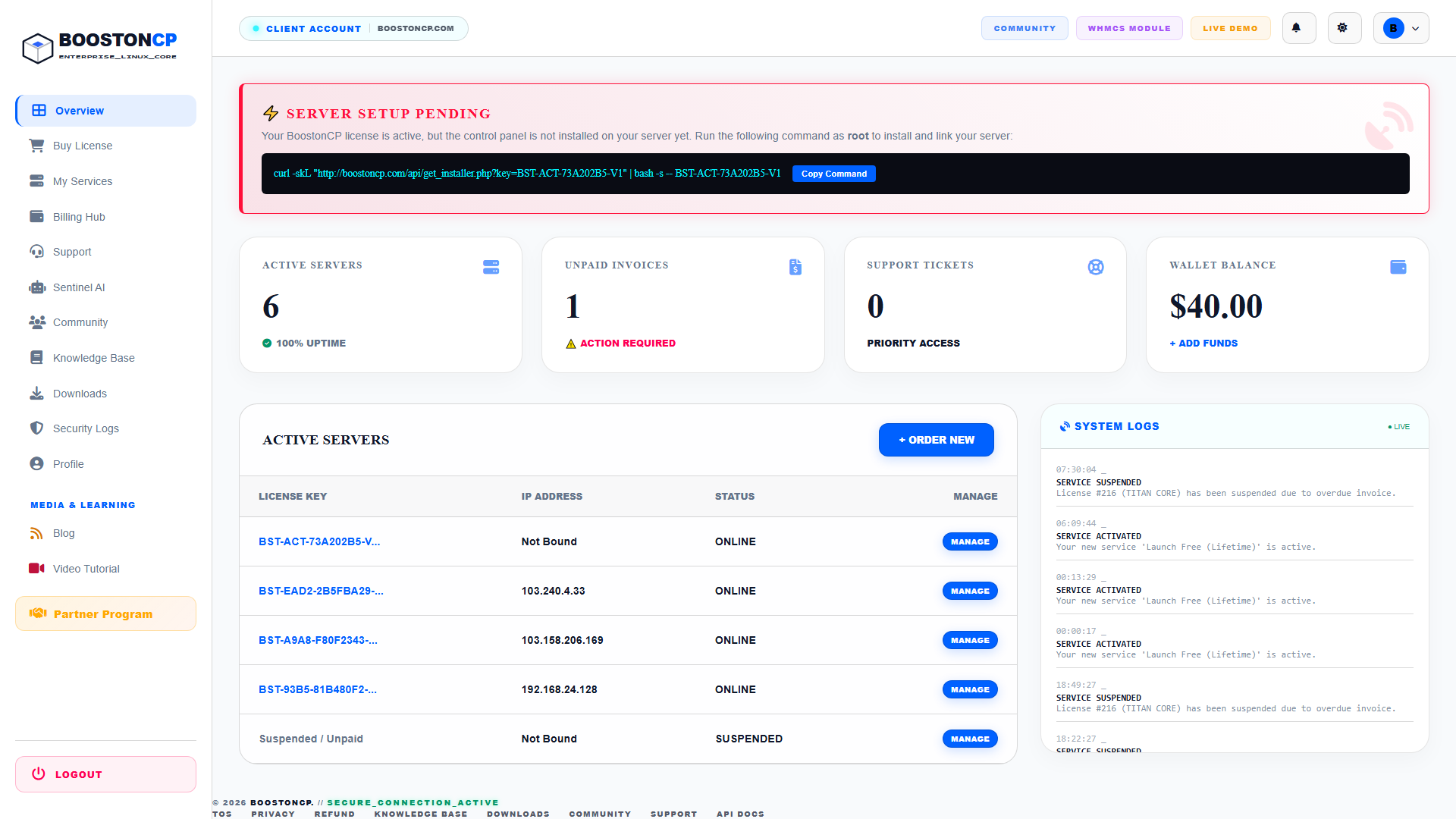
The dashboard layout is structured into five distinct operational zones:
- Top Header & Global Navigation: Houses account status badges, direct links to the Community Forum, WHMCS Module repository, Live Interactive Demo, real-time notification bell, account settings shortcut, and user profile dropdown.
- Server Setup Pending (Neural Uplink) Banner: A high-priority reactive alert banner displayed whenever an active license key has not yet been linked to an installed control panel server.
- Core Telemetry Metric Cards: Four real-time statistical cards providing instant health and financial status:
- ACTIVE SERVERS: Total provisioned server instances with uptime indicator.
- UNPAID INVOICES: Pending financial obligations requiring immediate settlement.
- SUPPORT TICKETS: Open technical inquiry count with priority SLA indicator.
- WALLET BALANCE: Current available account credit with 1-click + ADD FUNDS launcher.
- Active Servers Quick Table: An actionable data grid listing your most recently deployed server licenses, IP bindings, operational statuses, and management shortcuts, along with the + ORDER NEW action button.
- Live System Logs Stream: A real-time timeline auditing server activations, suspensions, renewals, and system events.
2. Server Setup Pending: The 1-Click Neural Uplink
When you acquire a new license (e.g., BST-ACT-73A202B5-V1), BoostonCP monitors the network for an initial handshake from your remote server. If your license is active but the panel is not yet installed, the dashboard highlights the SERVER SETUP PENDING banner at the top of your screen.
How to Install and Link Your Server in One Command:
- Log into your Linux VPS or Dedicated Server via SSH as the root user:
ssh root@YOUR_SERVER_IP - On the dashboard banner, click the blue Copy Command button. The command follows this optimized format:
curl -sKL "http://boostoncp.com/api/get_installer.php?key=YOUR_LICENSE_KEY" | bash -s -- YOUR_LICENSE_KEY - Paste the command into your server's root terminal and press Enter.
- The automated installer will download the native GoLang binaries, configure Nginx, MariaDB, and security subsystems, and automatically register your server's public IP address with the licensing core.
- Once the installation completes, refresh your dashboard: the SERVER SETUP PENDING banner will disappear, and your server will appear under Active Servers with status
ONLINE.
3. Telemetry Metric Cards Explained
The four primary metric cards at the top of the dashboard provide at-a-glance status monitoring:
| Metric Card | Visual Display | Description & Operational Purpose | Action Trigger |
|---|---|---|---|
| ACTIVE SERVERS | 6 (100% UPTIME) |
Reflects the count of licensed server nodes currently in good standing and actively resolving panel telemetry. | Clicking navigates to services.php for complete fleet management. |
| UNPAID INVOICES | 1 (ACTION REQUIRED) |
Displays invoices awaiting payment. Highlights in red/yellow warning tones to prevent accidental service suspension. | Clicking navigates directly to billing.php to settle dues. |
| SUPPORT TICKETS | 0 (PRIORITY ACCESS) |
Tracks active support tickets open with the technical assistance desk. | Clicking navigates to support.php to review staff replies. |
| WALLET BALANCE | $40.00 |
Displays deposited account credit available for automated monthly license renewals and new service provisioning. | Clicking + ADD FUNDS launches the wallet deposit modal. |
4. The Active Servers Data Table
The ACTIVE SERVERS table allows immediate inspection and management of your server infrastructure.
- LICENSE KEY: Displays the masked license key string (e.g.,
BST-EAD2-2B5FBA29-V1). Clicking the copy icon copies the full unmasked key to your clipboard. - IP ADDRESS: Shows the primary IPv4 address bound to the license. If the license is newly provisioned, it displays
Not Bound. - STATUS:
ONLINE(Green): Server is active, validated, and communicating with the core.SUSPENDED(Red/Orange): License is suspended due to an overdue invoice or manual administrative hold.
- ACTION: The blue MANAGE button opens the detailed service manager (
view_service.php), where you can trigger remote IP reissues, inspect license credentials, and toggle auto-renewal. - + ORDER NEW: Positioned at the top-right of the table, this button redirects to
store.phpto provision additional server nodes.
5. Live System Logs Feed
The SYSTEM LOGS panel on the right sidebar provides an unalterable chronological audit trail of all licensing events affecting your account:
SERVICE ACTIVATED: Confirms when a new license has been provisioned (e.g.,Your new service 'Launch Free (Lifetime)' is active).SERVICE SUSPENDED: Notifies when a license is temporarily disabled due to an overdue billing cycle.LICENSE REISSUED: Records remote IP resets executed by your user profile.
6. Daily Administrative Procedures
Step 1: Routine Health Verification
Upon logging in, verify that the ACTIVE SERVERS count matches your deployed infrastructure and that UNPAID INVOICES is at 0.
Step 2: Maintaining Wallet Reserves
To ensure your servers never experience automated renewal interruptions, keep your WALLET BALANCE funded with at least 1–2 months of anticipated licensing costs. Click + ADD FUNDS to top up via bKash or credit card.
Step 3: Managing Server Nodes
Click the MANAGE button adjacent to any active server to update its hardware fingerprint, reissue its IP address, or retrieve manual activation tokens.




