To maintain an abuse-free hosting and licensing ecosystem, BoostonCP enforces mandatory email verification for all newly registered client accounts. Unverified accounts cannot provision server licenses, execute remote IP reissues, or manage payment gateways.
This manual explains why verification is required, walks through the interface of the Account Pending notification terminal, and provides exact steps to activate your account.
1. Why Email Verification is Mandatory
Email verification serves three essential security functions:
- License Key Delivery: Software license keys and installation commands are tied directly to your verified corporate email address.
- Account Recovery & 2FA: If you forget your password or lose access to your session, recovery tokens and Two-Factor Authentication codes are delivered to this address.
- Sybil & Abuse Prevention: Mandating verified mailboxes prevents spammers and botnets from bulk-registering unauthorized trial licenses.
2. Interface Tour: The Pending Verification Screen
When you complete registration or attempt to log in with an unverified account, you are automatically directed to the Pending Verification screen:
https://boostoncp.com/client/[email protected]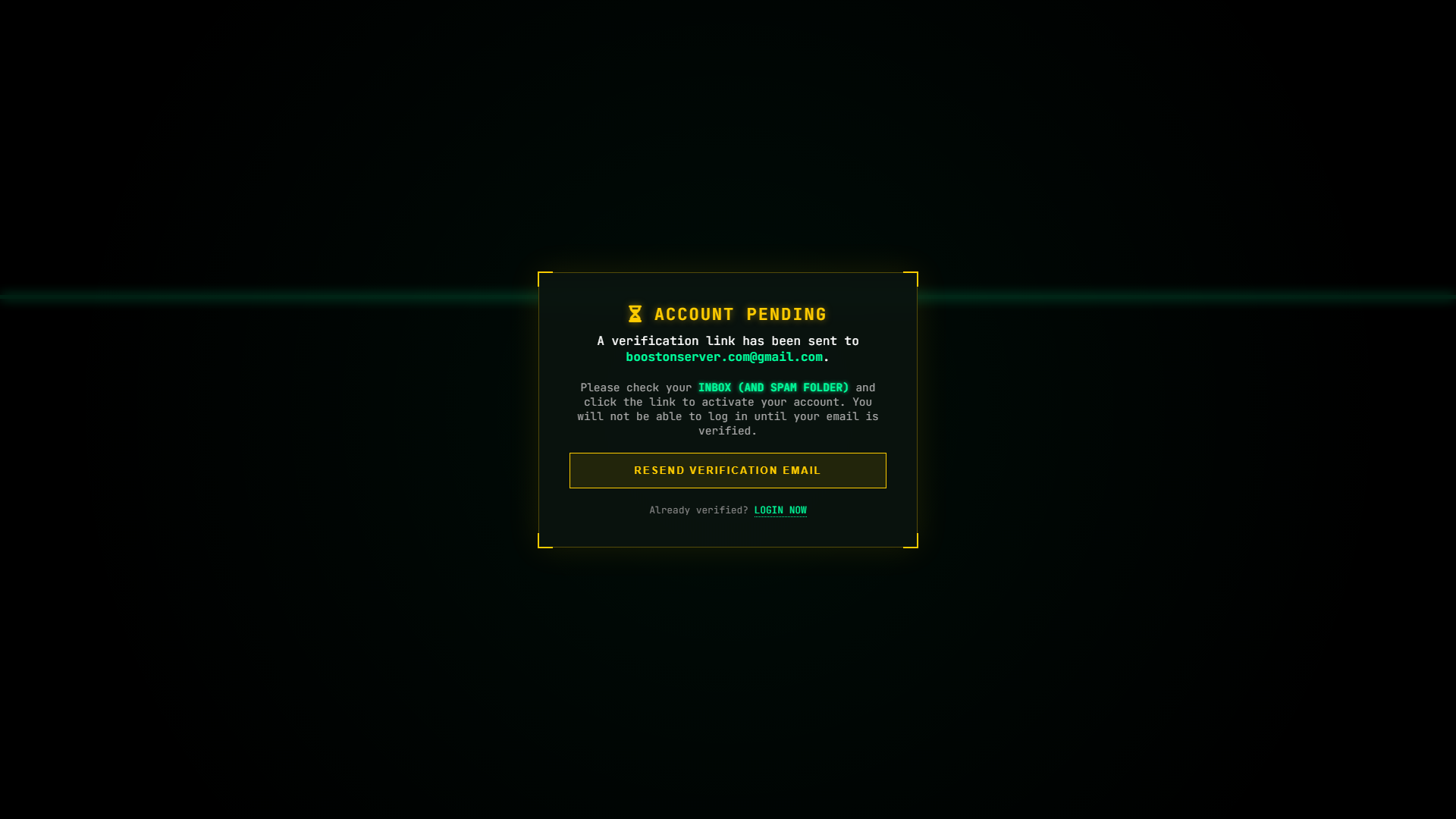
The pending verification interface includes the following elements:
- Hourglass Alert Icon & Title: A prominent yellow hourglass indicator with the header
ACCOUNT PENDING. - Recipient Target Address: Clearly indicates the specific email address where the activation link was dispatched (e.g.,
A verification link has been sent to [email protected]). - Spam Notice: Explicit instructions advising:
Please check your INBOX (AND SPAM FOLDER) and click the link to activate your account. You will not be able to log in until your email is verified. - Resend Action Button: A wide dark button labeled RESEND VERIFICATION EMAIL equipped with an anti-flood cooldown timer.
- Return Navigation:
Already verified? LOGIN NOW-> redirects directly toindex.php.
3. Step-by-Step Activation Walkthrough
Follow these simple steps to activate your account:
Step 1: Open Your Email Client
Log into your email provider (Gmail, Outlook, Yahoo, or your private webmail).
Step 2: Locate the Activation Message
Look for a message with the subject line:
Verify Your BoostonCP AccountSender: BoostonCP Core <[email protected]>.
Step 3: Click the Verification Link
Inside the email, click the button labeled ACTIVATE ACCOUNT or click the direct activation link:
https://boostoncp.com/client/verify_email.php?token=d7e3b92a1c0f4...Step 4: Confirmation & Automatic Login
When clicked, your browser will open verify_email.php. The database will instantly update your status:
is_email_verified = 1- The one-time verification token is purged.
A success alert will confirm:
Your account has been successfully verified! You can now log in.Click Login Now to enter your dashboard.
4. How to Resend a Verification Email
If the initial activation email was blocked by a transient network issue or accidental spam deletion, you can easily request a fresh token:
- Return to the Pending Verification screen:
https://boostoncp.com/client/pending_verification.php?email=YOUR_EMAIL - Click the RESEND VERIFICATION EMAIL button.
- The server will generate a new cryptographic token and immediately dispatch an updated email.
- An on-screen confirmation will display:
A new verification link has been sent to your email address.
[!TIP] A 60-second cooldown is enforced between resend requests to protect mail server reputation. If you click the button repeatedly, the system will request that you wait until the cooldown expires.
5. Troubleshooting Verification Problems
Issue 1: "Invalid or expired verification token."
- Cause: You clicked an older verification link after requesting a new one via the "Resend" button, or the token was already consumed.
- Resolution: Always open the most recent email received from BoostonCP. If in doubt, visit
pending_verification.php, click RESEND VERIFICATION EMAIL, and click the link in the brand new email.
Issue 2: Email never arrives in Gmail or Outlook
- Cause: Enterprise mail filters or spam classification algorithms may place automated activation emails into secondary categories.
- Resolution:
- In Gmail, check the Spam folder and the Updates / Promotions tabs.
- In Microsoft Outlook, check the Junk Email folder.
- Mark the email as "Not Spam" to ensure future billing invoices and security alerts arrive smoothly in your primary inbox.




