Financial reliability and transparent accounting are built directly into the BoostonCP Client Portal. Through the Billing Hub (https://boostoncp.com/client/billing.php), clients manage recurring software subscriptions, deposit credit into prepaid wallets, inspect downloadable PDF receipts, and settle invoices using international and local payment gateways.
This manual explains how to deposit funds, pay open invoices, review transaction histories, and resolve billing inquiries.
1. Interface Tour: The Billing & Invoices Hub
Access the billing control center by clicking Billing Hub in the sidebar or visiting https://boostoncp.com/client/billing.php.
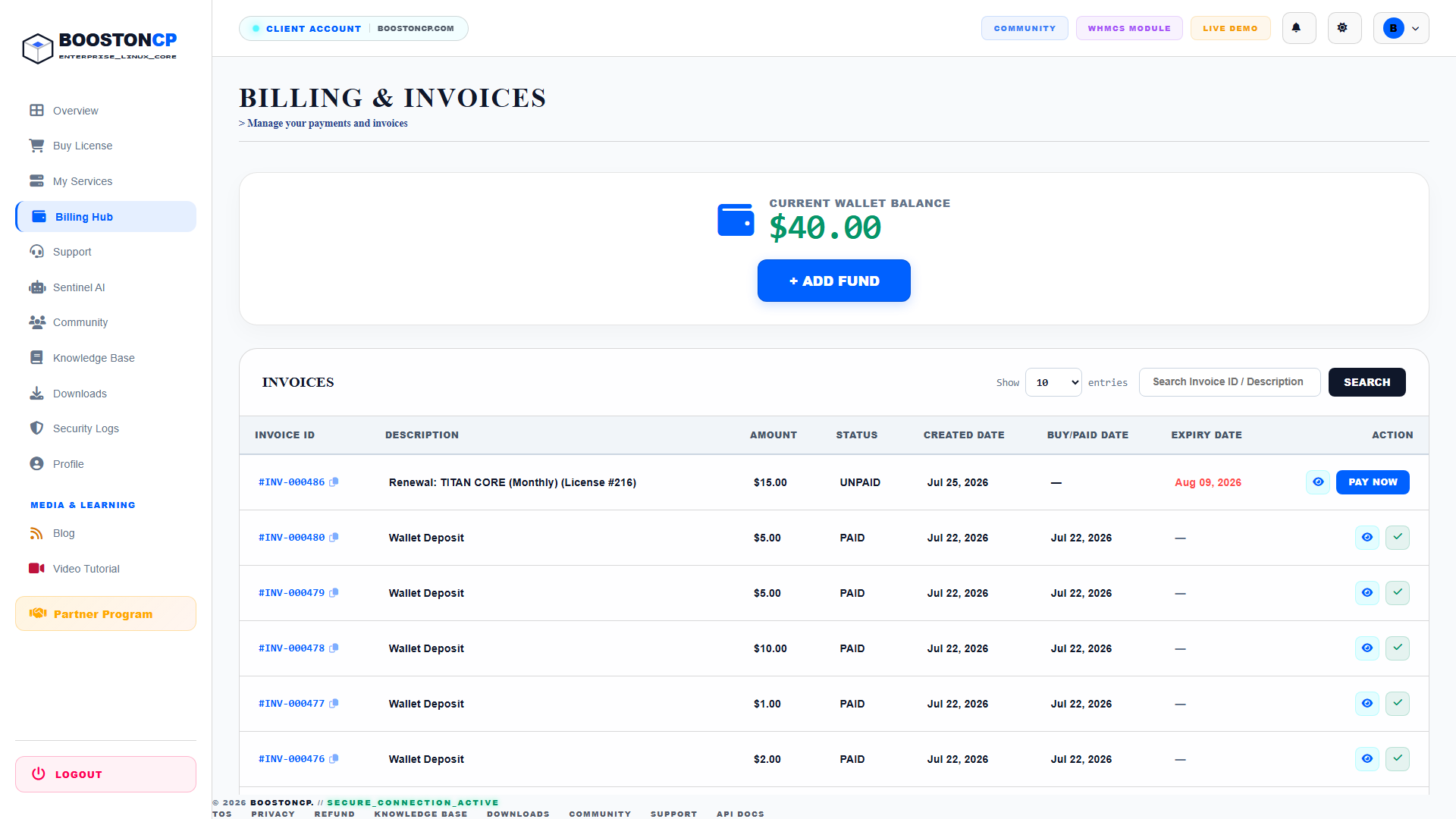
The interface is structured into three primary financial zones:
1. Current Wallet Balance Card
- Displays your real-time available prepaid account balance (e.g.,
CURRENT WALLET BALANCE: $40.00). - Features the prominent blue + ADD FUND button, which launches the direct balance deposit interface.
- Funds held in your wallet are automatically applied to recurring renewals, eliminating manual invoice processing.
2. Invoices Ledger
- Search & Pagination Controls: Filter invoices by ID, date, or description using the search box, and adjust page size via the
Show entriesdropdown. - Invoice Table Columns:
- INVOICE ID: A unique serial number (e.g.,
#INV-000486). Clicking the copy icon copies the ID for support references. - DESCRIPTION: Outlines the billed item (e.g.,
Renewal: TITAN CORE (Monthly) (License #216)orWallet Deposit). - AMOUNT: The exact total in USD (e.g.,
$15.00,$5.00). - STATUS:
UNPAID(Red / Bold): Awaiting payment.PAID(Green / Bold): Fully settled and reconciled.
- CREATED DATE: The date the invoice was generated.
- BUY/PAID DATE: The timestamp when payment was received.
- EXPIRY DATE: The deadline before services face automated suspension.
- ACTION: Actionable tools including the View Invoice Modal (eye icon), the blue PAY NOW button for open invoices, and the green checkmark for settled bills.
- INVOICE ID: A unique serial number (e.g.,
2. Step-by-Step: Adding Funds to Your Wallet
Pre-funding your BoostonCP wallet ensures uninterrupted license operation and allows instant provisioning of new server nodes without going through individual gateway checkouts.
Step 1: Launch the Deposit Portal
On billing.php, click the + ADD FUND button located directly inside the wallet balance card.
Step 2: Specify Deposit Amount
In the deposit dialog:
- Enter the amount in USD (minimum deposit:
$5.00). - Select your preferred currency or payment gateway.
Step 3: Choose Your Payment Gateway
BoostonCP supports both global and regional payment rails:
- Option A: Paddle (International Credit/Debit Cards, PayPal, Apple Pay):
- Select Paddle.
- An encrypted checkout overlay will open.
- Enter your card number, expiration date, and CVV, or select PayPal / Apple Pay.
- Click Pay Now. Upon bank authorization, funds are instantly credited to your wallet.
- Option B: bKash (Bangladesh Regional Payment Gateway):
- Select bKash.
- The official bKash Payment Gateway portal will open.
- Enter your bKash mobile number, input the one-time verification OTP sent to your phone, and enter your secure PIN.
- Once verified, the exact BDT-to-USD converted balance is added to your wallet in real time.
3. Step-by-Step: Paying an Open Invoice
When a recurring license invoice is generated, follow these steps to settle it:
Step 1: Locate the Unpaid Invoice
In the INVOICES table on billing.php, look for any row with status UNPAID (highlighted in red).
Step 2: Click "PAY NOW"
Click the blue PAY NOW button in the ACTION column.
Step 3: Choose Payment Method
A checkout selection dialog will appear:
- Pay via Wallet Balance: If your wallet balance exceeds the invoice total, click Pay with Wallet. The amount will be deducted immediately, and your license will renew instantly.
- Pay via Gateway: If your wallet is empty or insufficient, choose Paddle or bKash to settle the invoice directly.
Step 4: Verify Settlement
Upon payment completion, the invoice status changes to PAID with a green checkmark, the EXPIRY DATE on your license is automatically extended, and an official PDF receipt is dispatched to your email.
4. Invoice History & Accounting Records
Every transaction processed on BoostonCP produces an unalterable accounting record:
- Viewing Invoices: Click the blue eye icon next to any invoice to view the full itemized invoice breakdown, including tax rates, corporate billing details, and transaction timestamps.
- Downloading PDF Receipts: Inside the invoice view modal, click Download PDF to export a compliant financial statement for your corporate tax records.
5. Troubleshooting Billing Questions
Issue 1: Payment completed at gateway, but invoice still shows "UNPAID"
- Cause: Webhook latency between Paddle/bKash and the BoostonCP billing engine.
- Resolution: Wait 60–120 seconds and refresh
billing.php. If the invoice remains unpaid after 5 minutes, copy your Invoice ID and Gateway Transaction ID, navigate to Support, and open a ticket under the Billing department for manual reconciliation.
Issue 2: Unexpected service suspension
- Cause: An invoice passed its expiry date without payment, triggering an automated suspension event in the licensing core.
- Resolution: Settle the unpaid invoice immediately on
billing.php. The licensing core checks payment states every 60 seconds and will automatically reactivate your suspended license upon settlement.




