Protecting your server infrastructure begins with securing your client portal credentials. Unauthorized access to your BoostonCP account could expose server license keys, alter IP bindings, or compromise critical web workloads.
This manual explains how to configure Two-Factor Authentication (2FA), modify account credentials, and inspect security access logs on profile.php and security.php.
1. Profile Settings Interface Tour
Navigate to https://boostoncp.com/client/profile.php or click Profile in the sidebar.
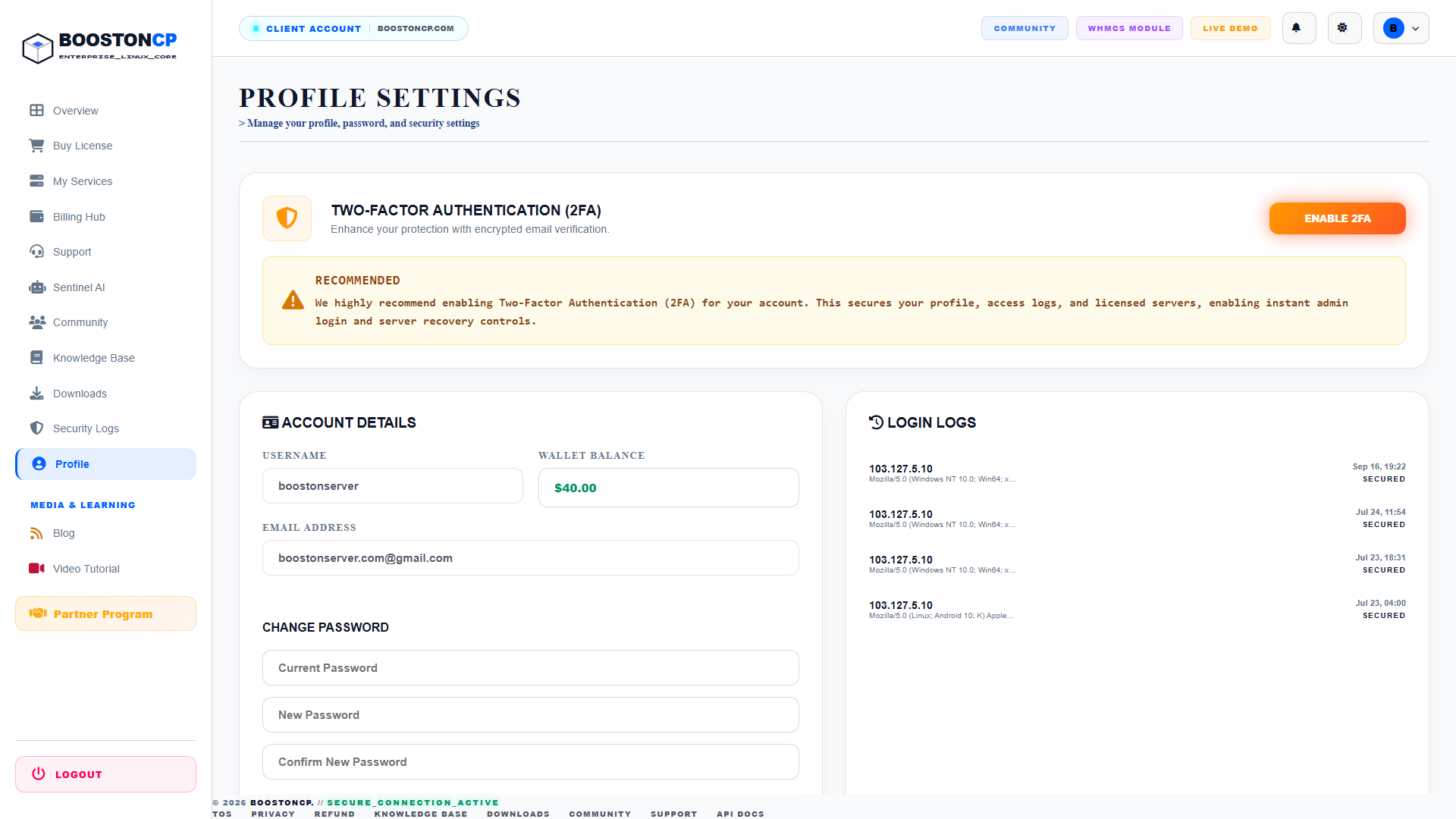
The profile settings view contains four primary security modules:
1. Two-Factor Authentication (2FA) Banner
- Highlights the current status of account multi-factor protection.
- Displays a security warning:
RECOMMENDED: We highly recommend enabling Two-Factor Authentication (2FA) for your account. This secures your profile, access logs, and licensed servers, enabling instant admin login and server recovery controls. - Features the prominent orange button labeled ENABLE 2FA.
2. Account Details Card
- USERNAME: Displays your unalterable system identifier (e.g.,
boostonserver). - WALLET BALANCE: Displays your current prepaid account credit (e.g.,
$40.00). - EMAIL ADDRESS: Displays your primary registered email address.
3. Change Password Card
- Three dedicated inputs for updating account credentials:
- Current Password: Authenticates that the request originates from the legitimate owner.
- New Password: Minimum 8 characters; strong entropy recommended.
- Confirm New Password: Ensures zero typographical mismatch.
4. Login Logs Sidebar
- Displays your most recent authentication sessions with client IP address, operating system/browser user agent, timestamp, and a green
SECUREDbadge.
2. Step-by-Step: Enabling Two-Factor Authentication (2FA)
Two-Factor Authentication adds an encrypted verification barrier to every login attempt, requiring an access code delivered to your verified email address.
Step 1: Click "Enable 2FA"
On profile.php, click the orange ENABLE 2FA button in the Two-Factor Authentication card.
Step 2: Verify Your Email Inbox
The system will dispatch a confirmation email with a 6-digit activation code to verify ownership of your registered mailbox.
Step 3: Enter Activation Code
Input the 6-digit code into the confirmation prompt and click ACTIVATE 2FA.
Step 4: Verification Complete
The banner on profile.php will update to display a green badge: 2FA STATUS: ACTIVE. Future login attempts will now require both your password and a one-time verification code.
3. Step-by-Step: Updating Your Password
To change your account password:
- Navigate to the CHANGE PASSWORD card on
profile.php. - In the Current Password field, enter your active password.
- In the New Password field, enter your new secret credential (at least 8 characters with numbers and symbols).
- Re-enter the new password into Confirm New Password.
- Click UPDATE PASSWORD.
- Upon successful update, all other active browser sessions will be terminated automatically to secure your account.
4. Inspecting Security & Activity Logs
To audit administrative actions and review login history, click Security Logs in the sidebar or navigate to https://boostoncp.com/client/security.php.
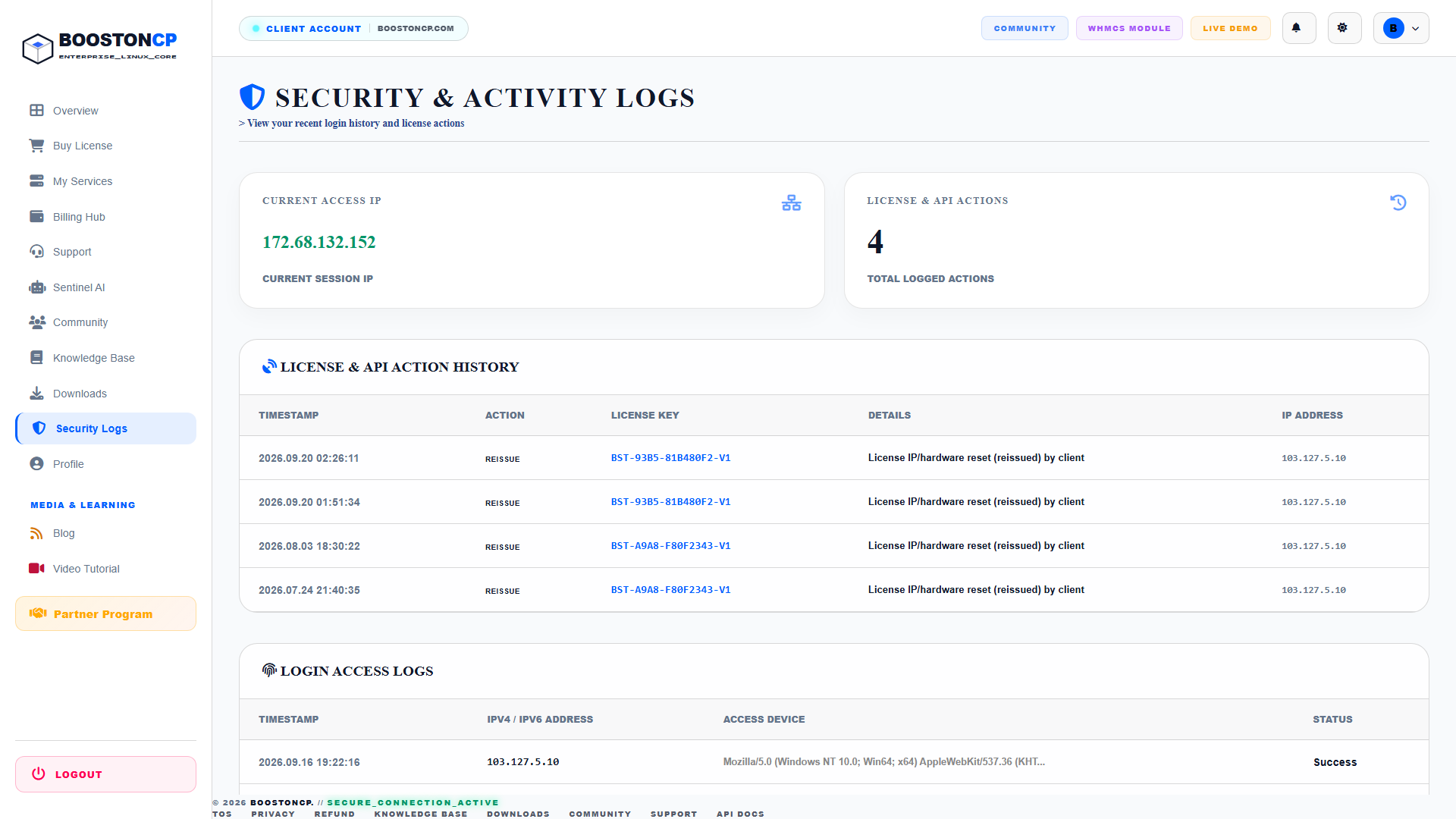
The security portal is divided into telemetry widgets and chronological audit tables:
Telemetry Widgets:
- CURRENT ACCESS IP: Displays your current public IP address as detected by edge firewalls (e.g.,
172.68.132.152). - LICENSE & API ACTIONS: Counts the total volume of sensitive administrative operations recorded (e.g.,
4 TOTAL LOGGED ACTIONS).
Table 1: License & API Action History
Audits high-impact operations across your server licenses:
- TIMESTAMP: Exact date and time of the event (e.g.,
2026.09.20 02:26:11). - ACTION: The category of event executed (e.g.,
REISSUE). - LICENSE KEY: The specific key affected (e.g.,
BST-93B5-81B480F2-V1). - DETAILS: Human-readable explanation (e.g.,
License IP/hardware reset (reissued) by client). - IP ADDRESS: The originating IP address from which the command was triggered (
103.127.5.10).
Table 2: Login Access Logs
Provides a historical record of all authentication attempts:
- TIMESTAMP: Authentication time.
- IPV4 / IPV6 ADDRESS: The source IP of the client browser.
- ACCESS DEVICE: The full User-Agent string revealing browser type and operating system version.
- STATUS: Indicates whether authentication succeeded (
Success) or was rejected (Failed).
5. Security Best Practices & Troubleshooting
- Audit Stale IP Sessions: If you see unfamiliar IP addresses in your Login Access Logs, immediately change your password and enable 2FA.
- Lost Access to 2FA Email: If you lose access to your registered email address, contact BoostonCP enterprise support with proof of server ownership and recent payment transaction receipts to initiate manual identity verification.




