The licensing subsystem is the cornerstone of BoostonCP. It bridges your client account with remote server installations, validating operational rights, user quota allocations, and software updates.
This manual provides an exhaustive guide to the entire license lifecycle: choosing the right licensing tier from the Store, binding licenses to VPS/Dedicated servers, managing active keys in My Services, and executing Remote IP Reissues when migrating hardware.
1. Purchasing Licenses: The Store Interface
To acquire a new server license, navigate to https://boostoncp.com/client/store.php or click Buy License in the client sidebar.
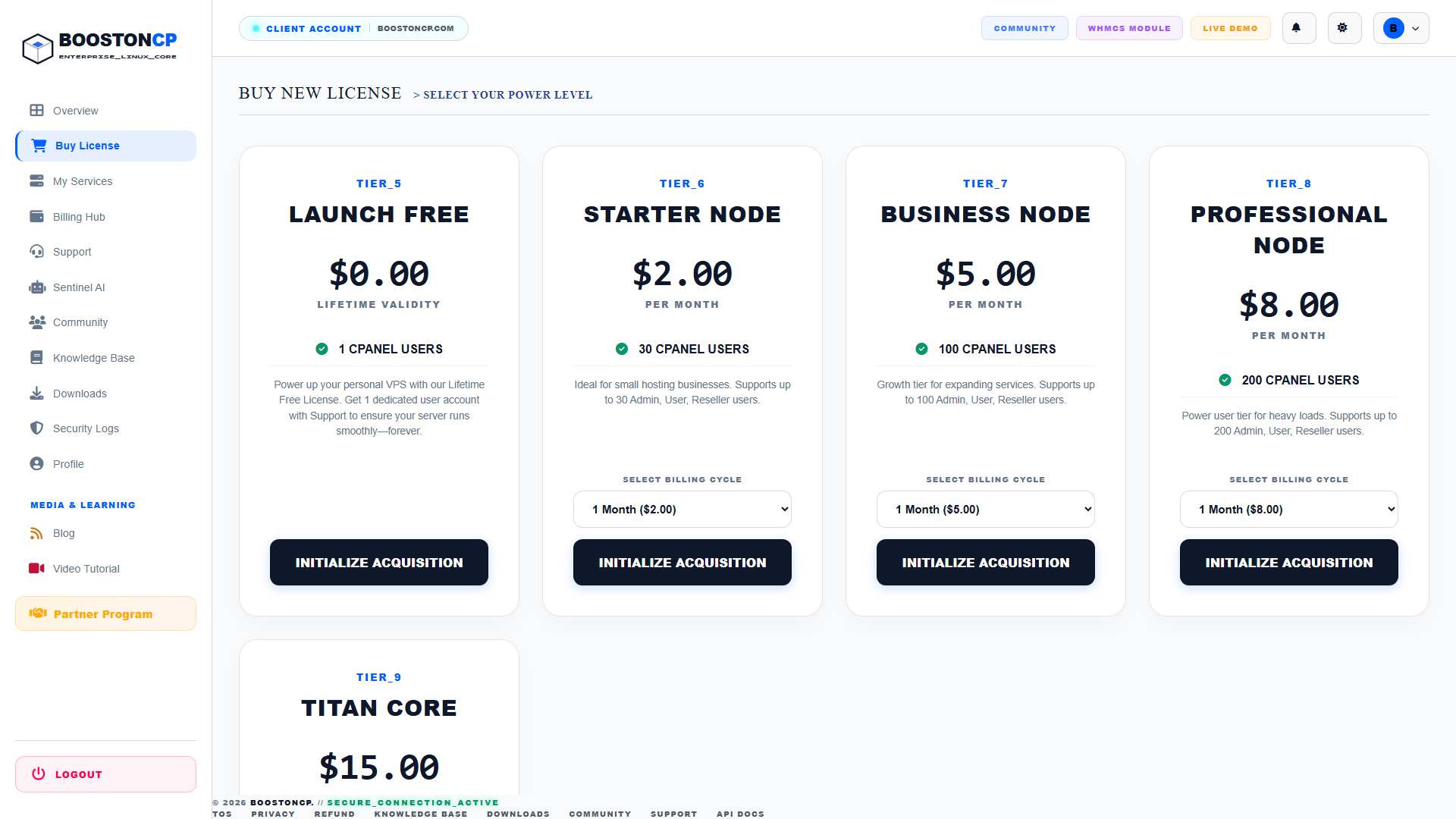
The BoostonCP Store provides flexible power tiers tailored from entry-level single-site deployments to high-density hosting infrastructures:
Licensing Tier Breakdown:
- TIER_5: LAUNCH FREE ($0.00 Lifetime Validity):
- Capacity: 1 cPanel User Account.
- Purpose: Personal VPS hosting, private blogs, developer staging, and homelabs.
- Cost: $0.00 forever—no credit card required.
- TIER_6: STARTER NODE ($2.00 / Month):
- Capacity: Up to 30 Admin, User, and Reseller accounts.
- Purpose: Freelancers, boutique web agencies, and small multi-client servers.
- TIER_7: BUSINESS NODE ($5.00 / Month):
- Capacity: Up to 100 Admin, User, and Reseller accounts.
- Purpose: Growing digital marketing firms and commercial web hosting providers.
- TIER_8: PROFESSIONAL NODE ($8.00 / Month):
- Capacity: Up to 200 Admin, User, and Reseller accounts.
- Purpose: High-traffic production clusters and established hosting businesses.
- TIER_9: TITAN CORE ($15.00 / Month):
- Capacity: Unlimited user accounts and priority kernel update channels.
- Purpose: Enterprise bare-metal infrastructure and mission-critical cloud deployments.
Step-by-Step Purchase Workflow:
- Review the feature cards on
store.phpand select the appropriate tier. - Select your desired Billing Cycle from the dropdown menu (e.g.,
1 Month ($2.00),6 Months, or12 Months). - Click the dark button labeled INITIALIZE ACQUISITION.
- If purchasing a paid tier, you will be redirected to the checkout gateway to complete payment via Wallet Balance, bKash, or Paddle (Cards/PayPal).
- If selecting the Launch Free tier, provisioning is instant: the system generates your key immediately without invoicing.
2. Managing Licenses: The "My Services" Portal
To review and configure your existing licenses, navigate to https://boostoncp.com/client/services.php or click My Services in the sidebar.
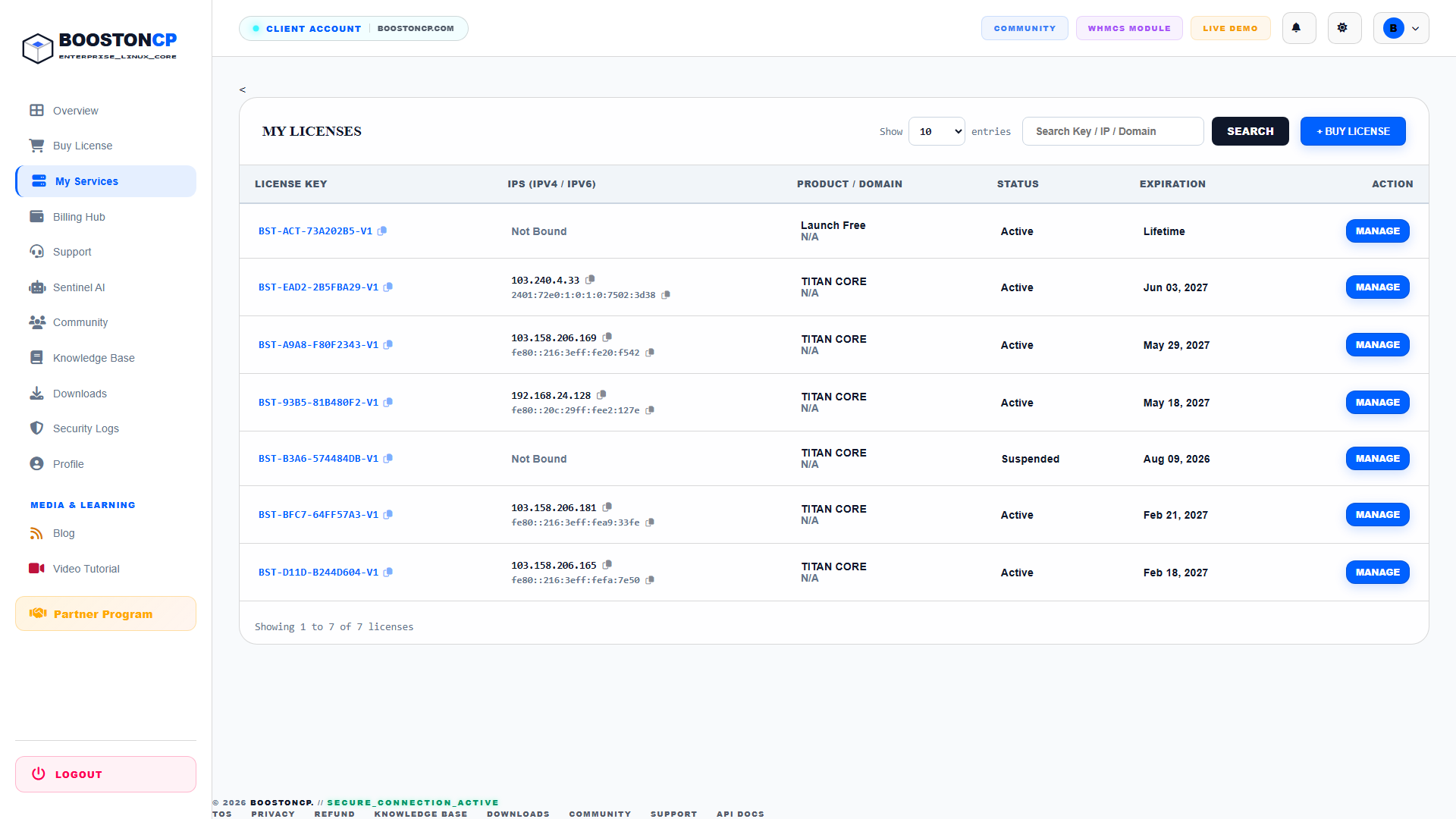
The MY LICENSES table presents a complete ledger of your provisioned nodes:
- LICENSE KEY: Displays the alphanumeric key (e.g.,
BST-EAD2-2B5FBA29-V1). Clicking the copy icon copies the key directly to your clipboard. - IPS (IPV4 / IPV6): Shows the current public IP addresses bound to the license. BoostonCP natively tracks dual-stack IPv4 (
103.240.4.33) and IPv6 (2401:72e0:1:0:1:0:7502:3d38) addresses. - PRODUCT / DOMAIN: Identifies the license tier (
Launch Free,TITAN CORE) and any custom hostname tag assigned. - STATUS: Indicates the current health (
Active,Suspended,Terminated). - EXPIRATION: Displays the next renewal due date (e.g.,
Jun 03, 2027) orLifetimefor free nodes. - ACTION: The blue MANAGE button opens the deep management portal for the specific license (
view_service.php).
3. Reissuing Licenses (Changing Server IP / Hardware Migration)
When moving your website to a new hosting provider, upgrading VPS specifications, or changing datacenters, your server's public IP address will change. BoostonCP allows clients to execute self-service Remote License Reissues without contacting support.
Step-by-Step IP Reissue Procedure:
- In the MY LICENSES table, find the license you want to migrate and click its MANAGE button.
- In the license management modal, locate the IP Address Binding card.
- Click the button labeled REISSUE LICENSE (or Reset Bound IP).
- The status of the bound IP will switch to
Not Bound(Pending Re-registration). - On your new server, run the one-line installation command using the existing license key:
curl -sKL "http://boostoncp.com/api/get_installer.php?key=YOUR_LICENSE_KEY" | bash -s -- YOUR_LICENSE_KEY - Alternatively, if BoostonCP is already installed on the new machine, run:
/usr/bin/booston-core license-sync - The new server will contact the BoostonCP license API, securely register its new IPv4 and IPv6 addresses, and lock the binding.
- The event is automatically recorded in your Security & Activity Logs.
4. Configuring Auto-Renewal
To prevent unexpected service interruption on production websites, BoostonCP provides an automated renewal daemon:
- Inside
view_service.php, locate the Auto-Renewal toggle switch. - Toggle the switch to ENABLED.
- When enabled, the system will automatically deduct the recurring license fee from your Wallet Balance 24 hours prior to expiration, generate a zero-balance receipt, and advance the expiration date by one billing cycle.
- If wallet funds are insufficient, an email notification is dispatched requesting a top-up.
5. Troubleshooting License Issues
Issue 1: "License IP Mismatch Error" on Remote Server
- Cause: Your server's outgoing public IP address does not match the IP registered in the BoostonCP license database.
- Resolution: Navigate to
services.php, click MANAGE, click REISSUE LICENSE, and then execute/usr/bin/booston-core license-syncon the server terminal to bind the new IP.
Issue 2: License Status Displays "Suspended"
- Cause: An associated invoice passed its due date without payment.
- Resolution: Navigate to
billing.php, locate the unpaid invoice for the license, click PAY NOW, and settle the invoice using your wallet or payment gateway. The license will automatically restore toActivewithin 30 seconds.




