The BoostonCP Client Portal authentication gateway (https://boostoncp.com/client/index.php) is the secure entry door to your cloud licensing infrastructure. Once logged in, you gain complete administrative authority over server licenses, automated invoices, payment gateway deposits, support interactions, and developer API credentials.
This manual provides complete step-by-step instructions for authenticating into your account, navigating multi-factor security barriers, understanding session parameters, and diagnosing access errors.
1. Accessing the Login Gateway
You can access the client login terminal via the following standard methods:
- Direct Web Browser URL:
https://boostoncp.com/client/index.php - Main Website Navigation: From boostoncp.com, click the dark blue LOGIN button in the top-right header menu.
2. Interface Tour: The Client Login Terminal
The client login interface features a distraction-free, focused security card designed for rapid authentication while preventing automated credential stuffing attacks.
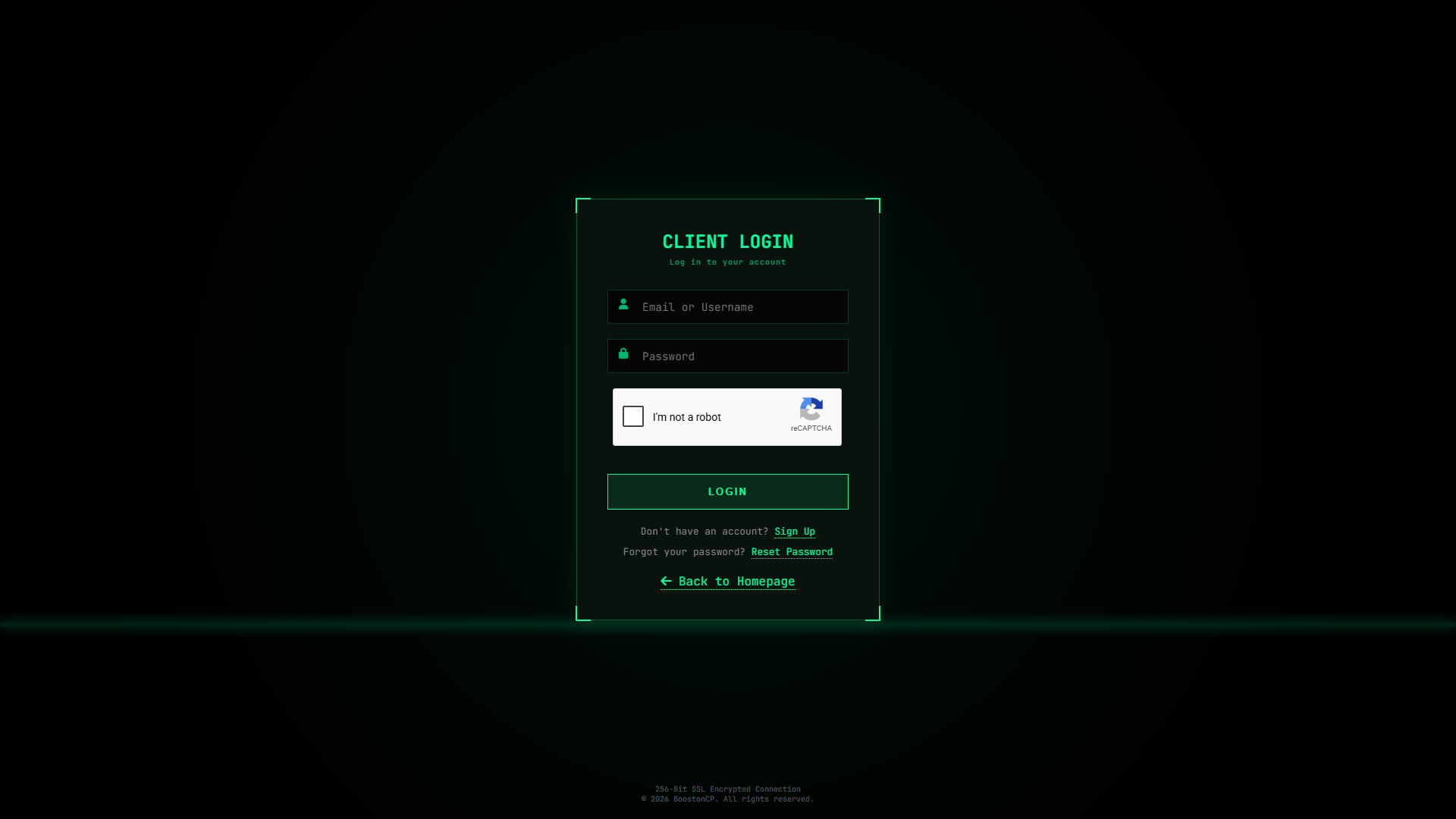
Key visual components include:
- Terminal Header: Displays
CLIENT LOGINwith the descriptive subtitleLog in to your account. - Identity Input Field: An icon-prefixed (
fas fa-user) text input accepting either your Registered Email Address or your Alphanumeric Username. - Password Input Field: An icon-prefixed (
fas fa-lock) password input for your secret credential. - reCAPTCHA Protection: Google reCAPTCHA v2 human challenge box safeguarding against automated brute-force attacks.
- Primary Login Action: The bright green LOGIN button that initiates authentication.
- Account Recovery Navigation:
Don't have an account? Sign Up-> redirects toregister.php.Forgot your password? Reset Password-> redirects toforgot_password.php.<- Back to Homepage-> returns to the primary marketing homepage.
- Footer Security Indicator:
256-Bit SSL Encrypted Connection // © 2026 BoostonCP. All rights reserved.
3. Step-by-Step Login Instructions
Follow these steps to log into your client area:
Step 1: Enter Your Account Identifier
In the Email or Username field, enter either the email address you registered with (e.g., [email protected]) or your unique username. Both options are supported by the authentication resolver.
Step 2: Enter Your Password
Carefully type or paste your password into the Password field. Ensure that your keyboard's Caps Lock is turned off.
Step 3: Complete Human Verification
Click the I'm not a robot reCAPTCHA checkbox. If prompted, complete the image selection verification until the green checkmark is displayed.
Step 4: Click the Login Button
Click the green LOGIN button.
- If your account does not have Two-Factor Authentication (2FA) enabled, you will be redirected immediately to the Client Dashboard.
- If your account has 2FA enabled, the system will generate a secure 6-digit one-time code, send it to your verified email address, and redirect you to the Verify 2FA screen (
verify_2fa.php).
4. Two-Factor Authentication (2FA) Verification Flow
BoostonCP provides native Two-Factor Authentication to shield client accounts against credential compromise:
- When logging in with valid credentials on a 2FA-protected account, the server issues a cryptographically random 6-digit numeric token (
000000–999999). - The code is saved in the database with a strict 300-second (5-minute) expiration timestamp (
2fa_code_expires_at). - An automated security email is dispatched via the high-availability SMTP cluster to your inbox with the subject:
Your Two-Factor Authentication Code - On the
verify_2fa.phpscreen, enter the 6-digit code received in your inbox and click VERIFY CODE. Upon successful verification, your session is authenticated and you are granted access todashboard.php.
5. Session Security & Activity Logging
Every successful and failed login attempt is audited in the BoostonCP database:
- IP Address Resolution: The system captures your real client IP through Cloudflare headers (
HTTP_CF_CONNECTING_IP/HTTP_X_FORWARDED_FOR) with IPv4 and IPv6 dual-stack validation. - User-Agent Fingerprinting: Your browser and operating system details are recorded to detect unusual login origins.
- Audit Record: You can review your historical login sessions at any time inside the Security Logs section of your client area.
6. Troubleshooting Common Login Issues
Issue 1: "Human verification failed. Please try again." or "reCAPTCHA verification is required."
- Cause: The reCAPTCHA token expired due to inactivity, or network latency prevented the token from reaching the verification endpoint.
- Resolution: Refresh the page (
Ctrl + F5orCmd + Shift + R), fill in your credentials, click the reCAPTCHA box, and click LOGIN within 60 seconds.
Issue 2: "Invalid email/username or password."
- Cause: Incorrect password entered, or typographical error in your username/email.
- Resolution: Verify that Caps Lock is disabled. If you cannot remember your credentials, click Reset Password below the login button to trigger an automated password reset.
Issue 3: Redirected to "Account Pending Verification"
- Cause: Your account was created, but you have not yet activated your email address.
- Resolution: Follow the on-screen instructions on the pending verification page. Click RESEND VERIFICATION EMAIL if you did not receive the initial link.




