
Executive Summary
Paying $7.20 per user every month for Google Workspace is sustainable for a small team, but it becomes a crippling financial burden as your business scales. The alternative? Hosting your own private email server. However, most developers fail at self-hosted email because their messages end up in the spam folder. In this exhaustive architectural guide, we deconstruct the mysteries of email deliverability, IP reputation, and inbound filtering. You will learn how to build a robust Google Workspace alternative on your own VPS using Postfix, Dovecot, and BoostonCP's Neural Auto-Deliverability Engine to guarantee a perfect 10/10 inbox placement score.
The SaaS Extortion: Why Businesses Are Leaving Google Workspace
Email is the most decentralized communication protocol in the world, yet a few massive tech giants have managed to centralize and monetize it heavily. When you sign up for Google Workspace or Microsoft 365, you are paying a premium for deliverability—the guarantee that your email will land in the recipient's Inbox, not their Spam folder.
But let's look at the math. If you have an agency or a medium-sized enterprise with 50 employees, Google Workspace will cost you over $4,300 per year just for basic email and calendar access. If you are an agency managing emails for 20 different clients, the costs are astronomical.
The stark reality? A standard $5/month Linux VPS can handle tens of thousands of emails per day with zero per-user licensing fees. The shift back to self-hosted infrastructure is inevitable, a trend we discussed extensively in our Modern Dev Crisis analysis.
Google Workspace vs. Self-Hosted VPS (The Cost Comparison)
| Metric | Google Workspace (50 Users) | Self-Hosted VPS ($5/mo) + BoostonCP |
|---|---|---|
| Annual Cost | $4,320 / Year | $60 / Year (Unlimited Users) |
| Mailbox Storage | 30 GB per user (Strict limit) | Bound only by VPS Disk Space (e.g. 100GB+) |
| Data Privacy | Scanned by corporate algorithms | 100% Private (You own the encryption keys) |
| Domain Limits | Complicated multi-domain routing | Native multi-tenant mapping |
The Architecture: Postfix, Dovecot & The Spam Problem
If we are going to build a self-hosted Google Workspace alternative, we must deeply understand the core Linux daemons that orchestrate email delivery. Sending an email is not a single action; it is a synchronized ballet between two entirely different pieces of software.
1. Postfix (The Mail Transfer Agent - MTA)
Postfix is the engine of your email server. It is responsible solely for transferring mail from point A to point B. When you compose an email and hit send, your email client (like Outlook or Apple Mail) connects to Postfix on Port 587 (Submission) or Port 465 (SMTPS). Postfix then performs a DNS lookup on the recipient's domain, finds their MX (Mail Exchanger) record, connects to their server on Port 25, and delivers the payload.
2. Dovecot (The Mail Delivery Agent - MDA)
While Postfix handles the logistics of routing, Dovecot is the warehouse. Dovecot receives incoming mail from Postfix and stores it securely on your server's SSD. When you open your email app, your phone connects to Dovecot over IMAP (Port 993) to fetch your inbox.
Storage Mechanics: Why Maildir is Superior
In legacy email servers, all emails for a specific user were stored in a single, massive text file (the mbox format). This meant that if two emails arrived at the exact same millisecond, file-locking issues could corrupt the entire mailbox.
Modern implementations, including BoostonCP's architecture, utilize the Maildir format. In Maildir, every single email is a discrete file (an inode) on the Linux filesystem. This allows Dovecot to read, write, and delete thousands of emails concurrently without any file-locking bottlenecks. When paired with NVMe SSD storage, Maildir ensures instantaneous IMAP synchronization across all your devices.
The Govhirota: Why Your Emails Go to Spam
Anyone can install Postfix by running apt install postfix. But if you do, your emails will instantly land in the Spam folder of Gmail and Yahoo. Why? Because the modern internet operates on a Zero-Trust architecture. When Gmail receives an email from your server, it asks: "How do I know this server is actually authorized to send mail on behalf of this domain?"
To prove your identity, you must implement the Holy Trinity of Email Authentication:
- SPF (Sender Policy Framework): A TXT DNS record that lists the IP addresses authorized to send emails for your domain. If a spammer tries to send an email using your domain name from a different server, the receiving server will check the SPF record, see the IP mismatch, and drop the email.
- DKIM (DomainKeys Identified Mail): A cryptographic signature attached to the headers of every outgoing email. The receiving server uses your public DNS key (published in your domain's TXT records) to verify the signature, proving the email was not tampered with in transit.
- DMARC (Domain-based Message Authentication, Reporting, and Conformance): A policy that tells Gmail exactly what to do if an email fails the SPF or DKIM checks (e.g., "Reject it" or "Quarantine it"). Having a strict DMARC policy tells inbox providers that you take security seriously.
The Art of IP Warm-Up (Deliverability Masterclass)
Even if you have perfect DNS records, a brand-new VPS comes with a brand-new IP address (or worse, a recycled IP address with a spotty history). Inbox providers like Microsoft and Google treat unfamiliar IP addresses with extreme suspicion.
If you spin up a server today and immediately blast 5,000 marketing emails, you will be permanently blacklisted. You must engage in a process called IP Warm-up.
IP Warm-up is the deliberate, gradual scaling of your outbound email volume. On day one, you should only send 10 to 20 emails, specifically targeting addresses of people you know will open and reply to them. High engagement (opens, replies, and marking "not spam") signals to Google's algorithms that your new server is legitimate. Over a period of 4 to 6 weeks, you can slowly scale this volume until your IP reputation is fully established.
Defending Your Inbox: SpamAssassin & Inbound Security
Self-hosting isn't just about sending mail; it's about receiving it without drowning in spam. Google Workspace has incredible inbound spam filters. To replicate this on a VPS, you need SpamAssassin.
SpamAssassin is a robust, open-source filter that scores every incoming email based on hundreds of heuristics. If an email originates from a blacklisted IP, uses suspicious phrases, or fails its own DKIM checks, SpamAssassin increases its "spam score". Once the score crosses a certain threshold (usually 5.0), the email is automatically routed to your Junk folder, keeping your Inbox pristine.
The BoostonCP Advantage: The Neural Auto-Deliverability Engine
Configuring Postfix, Dovecot, SpamAssassin, generating 2048-bit RSA keys, and injecting them into a BIND DNS zone file manually is an operational nightmare. It takes hours of debugging, and one wrong syntax error in your DKIM TXT record will ruin your domain's reputation forever.
This is where BoostonCP fundamentally alters the landscape. We engineered the Neural Core Identity & Auto-Deliverability Engine specifically to eliminate the email configuration burden.
When you create an Email Account in BoostonCP, the backend doesn't just create a Maildir. It performs a "Zero-Touch Hardening" protocol. It automatically generates a secure 2048-bit DKIM key, binds the SPF record, and injects a strict DMARC policy directly into the local BIND DNS zone file. It does all of this in under 2 seconds, entirely bypassing the need for root SSH escalation.
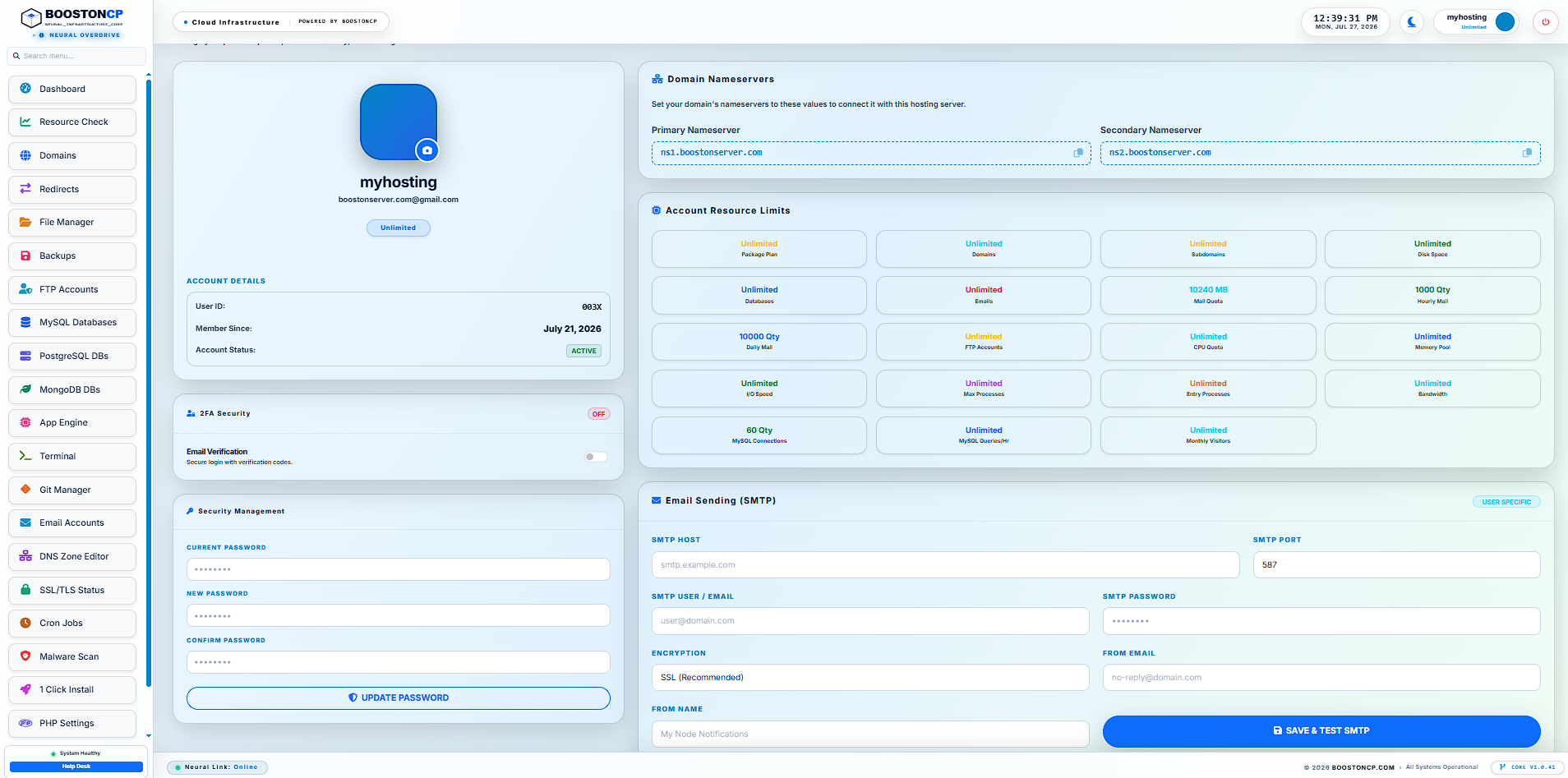
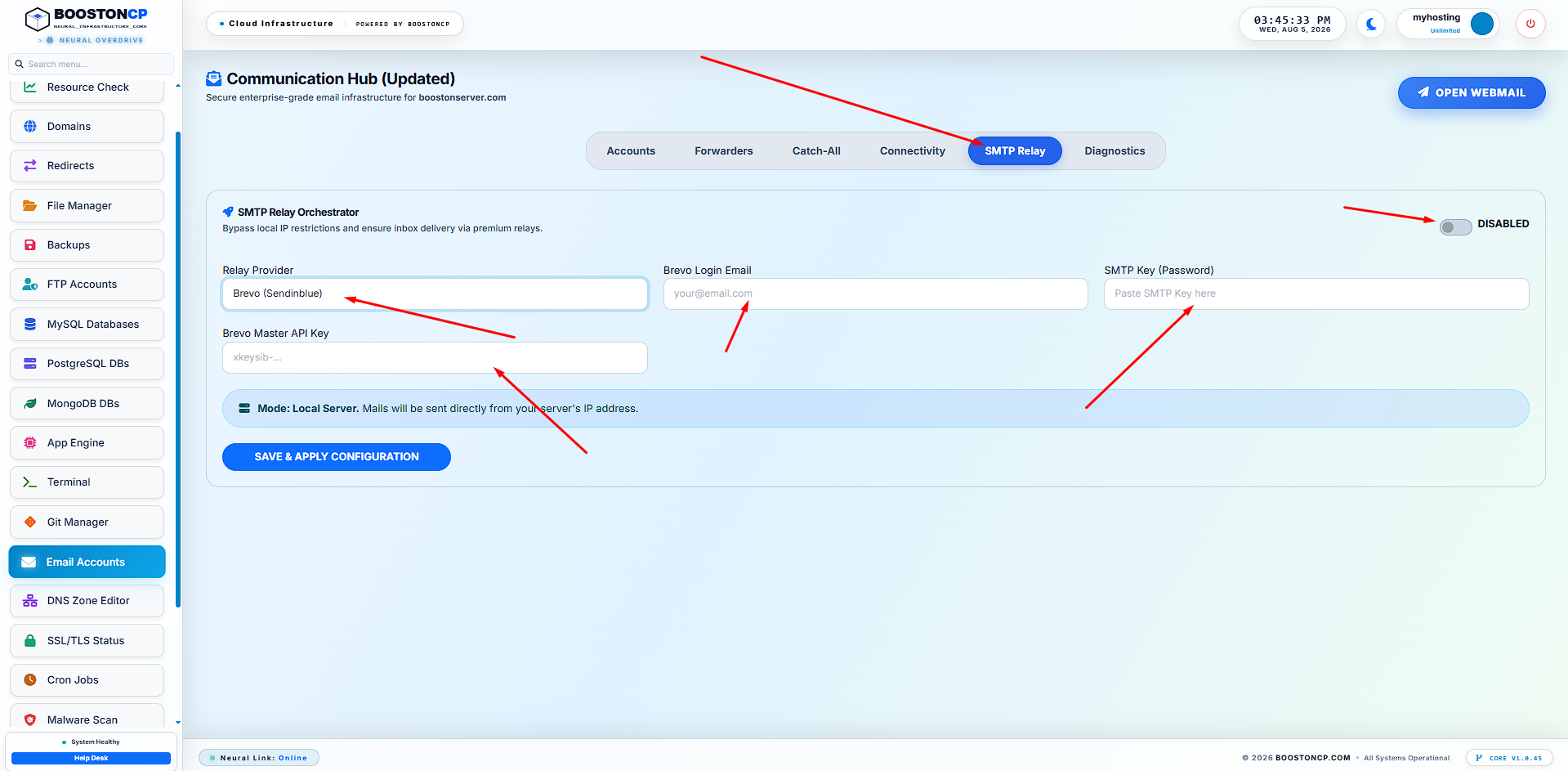
Furthermore, if you are hosting your VPS on a provider that blocks Port 25 (like DigitalOcean or AWS), BoostonCP features a native SMTP Relay UI. This allows you to route your outgoing emails through a trusted third-party (like SendGrid or Mailgun) by simply pasting their credentials into the UI, instantly mapping them into the Postfix core routing table.
Step-by-Step Guide: Building Your Private Email Server
Let's deploy a production-ready, highly secure business email server using BoostonCP that guarantees a 10/10 score on Mail-Tester.
Step 1: Set Up Reverse DNS (rDNS / PTR)
Before touching BoostonCP, you must configure your server's rDNS. Log into your VPS provider (Hetzner, Linode, etc.) and set the Reverse DNS of your server's IP address to match your main hostname (e.g., mail.yourdomain.com). Google will instantly reject your emails if your rDNS does not match your IP.
Step 2: Create the Mailbox in BoostonCP
- Log into your BoostonCP User Panel.
- Navigate to Email Accounts → Add Mailbox.
- Enter your prefix (e.g.,
hello) and select your domain (@yourdomain.com). - Generate a strong password and click Create.
Behind the scenes, BoostonCP has just provisioned your Dovecot storage, configured Postfix, and injected the SPF, DKIM, and DMARC records into your DNS server.
Step 3: Verify the Diagnostics Matrix
- Still in the Email Accounts module, click the Diagnostics tab.
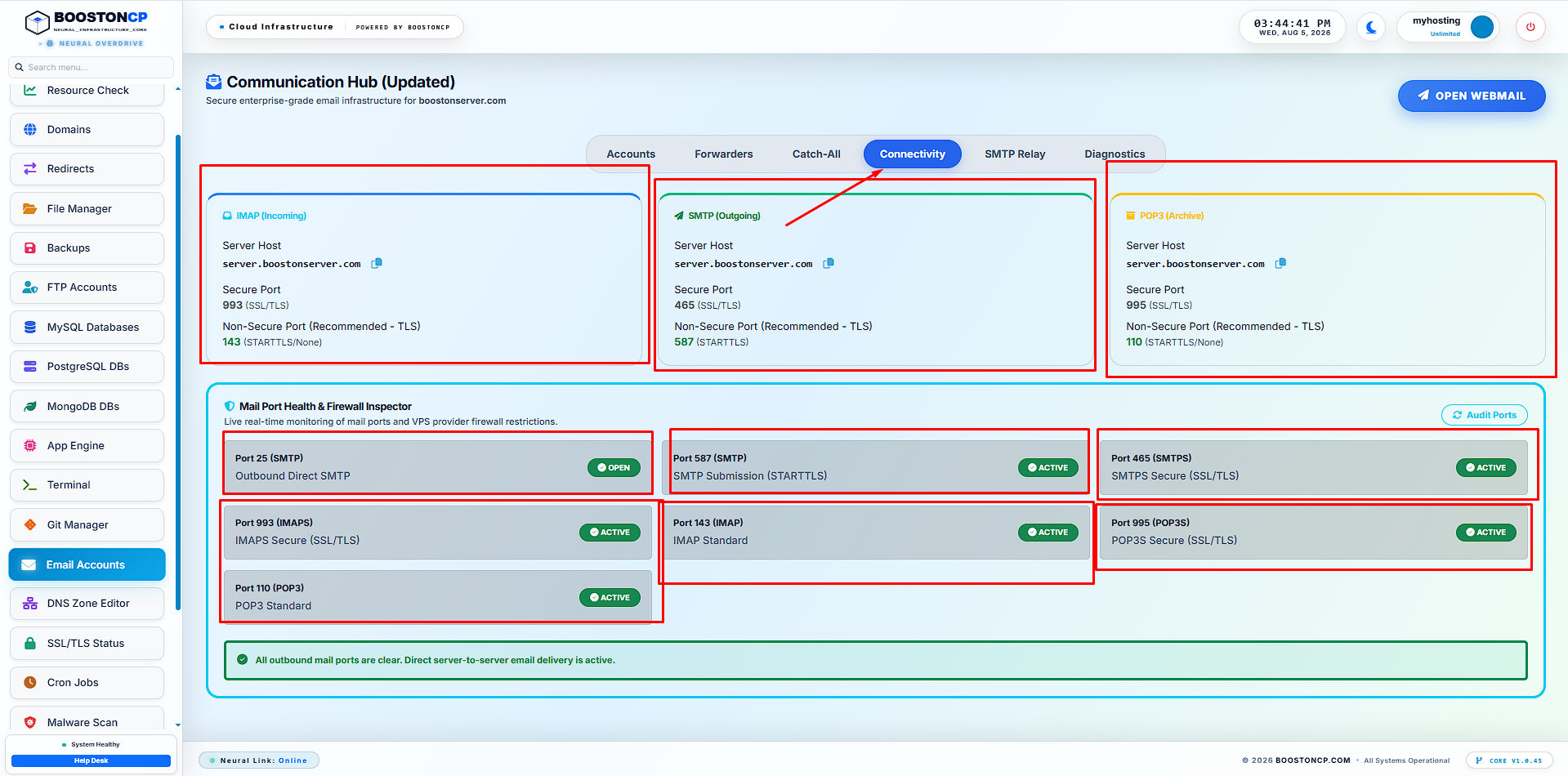
- BoostonCP features a sleek dark-mode system matrix that actively probes your Postfix and Dovecot socket connections.
- Ensure all indicators are Green. If a socket is hanging, BoostonCP provides a 1-click auto-repair button to restart the daemon.
Step 4: Connect Webmail and External Clients
You can instantly check your email using the built-in, lightning-fast SnappyMail web client provided by BoostonCP. Alternatively, you can connect your iPhone, Outlook, or Gmail app using your server's IP (or mail.yourdomain.com) via Port 993 (IMAP/SSL) and Port 465 (SMTP/SSL).
Monitoring and Troubleshooting: The Live Log Viewer
Even with perfect DNS records, sometimes an email bounces because the recipient's inbox is full or their corporate firewall blocked an attachment. In a traditional setup, you would need to SSH into the server and run `grep` commands on `/var/log/maillog`.
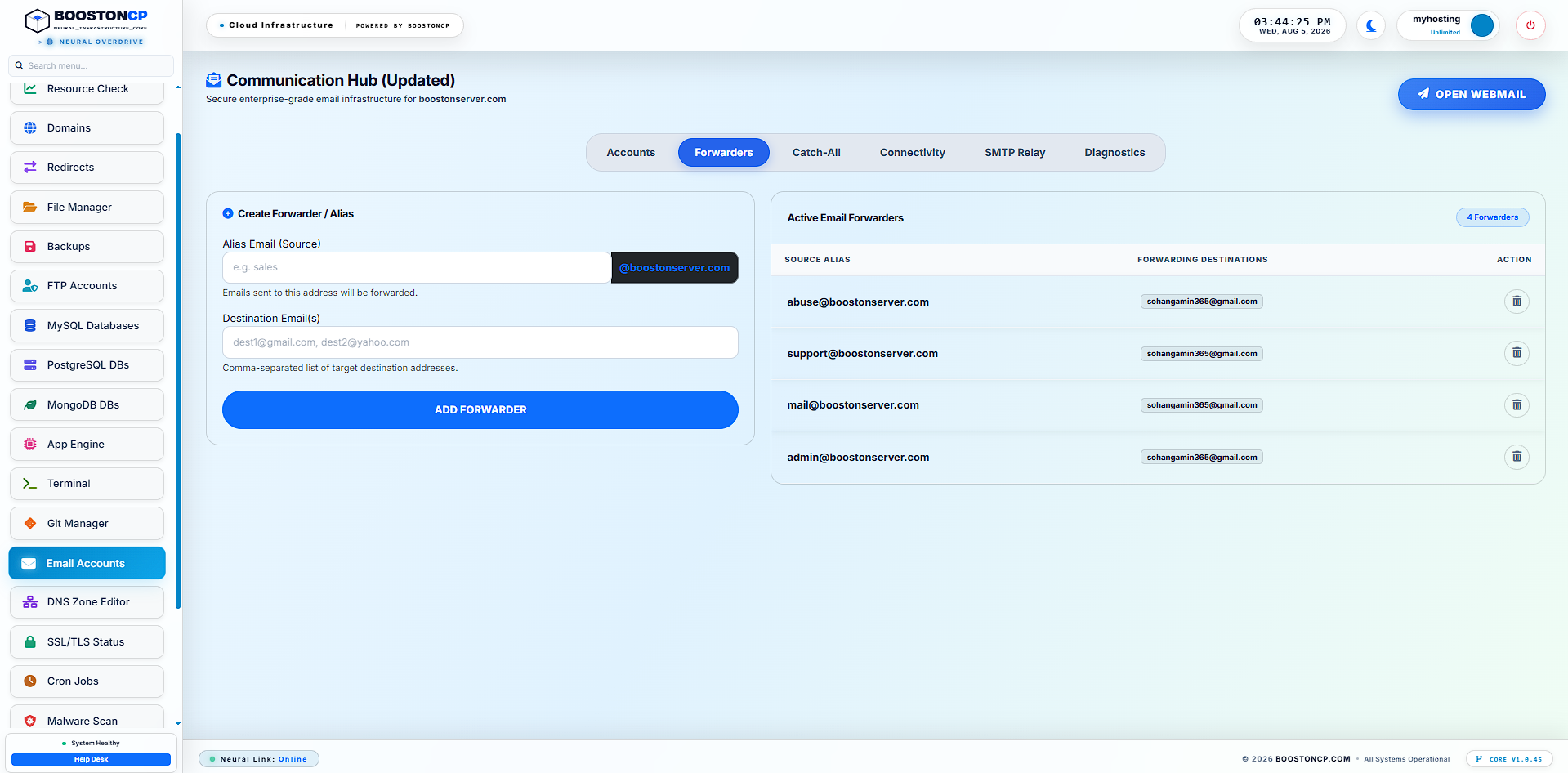
BoostonCP solves this with an embedded Live Log Viewer. From the Email Accounts UI, you can click the "Server Logs" tab to view real-time delivery paths and troubleshoot bounces instantly directly from your browser, making it the ultimate secure email management tool.
Frequently Asked Questions (FAQ)
Why do my self-hosted emails go to the Spam folder?
Emails land in the spam folder primarily due to a lack of DNS authentication or a poor IP reputation. Receiving servers like Gmail require you to prove your server's identity using SPF (Sender Policy Framework), DKIM (DomainKeys Identified Mail), and DMARC records. Additionally, your server must have a valid Reverse DNS (rDNS/PTR) record matching its hostname.
How does BoostonCP handle DKIM and SPF?
BoostonCP features a Neural Auto-Deliverability Engine that automates the entire process. When you create a mailbox, the panel generates a 2048-bit RSA key for DKIM, builds the correct SPF string containing your server IP, and natively injects them into the local BIND DNS zone file with zero manual configuration required.
What if my VPS provider blocks Port 25?
Many cloud providers (like DigitalOcean, AWS, and Vultr) block outbound Port 25 by default to prevent spam. If you cannot get it unblocked, you can use BoostonCP's built-in SMTP Relay feature. This allows you to route outgoing mail through a trusted 3rd party like SendGrid or Amazon SES, completely bypassing the local Port 25 restriction.
Is it secure to host my own business email?
Yes, hosting your own email is often more private than using a SaaS provider because you own the physical server and the encryption keys. BoostonCP enforces SSL/TLS (Port 993/465) for all Postfix and Dovecot connections, ensuring that all data transmitted between your device and the server is cryptographically secured.
Stop Paying for Every Inbox. Own Your Email Server.
Create unlimited, secure, 10/10 deliverable mailboxes on your own VPS with BoostonCP. Automated DKIM, SPF, and DMARC configuration right out of the box.






